How to fill the JEE Main 2027 application form
A step-by-step guide from Meri Pehchaan registration to downloading your Confirmation Page, with real screenshots of every page. Personal details in the screenshots are blacked out.
Apply on jeemain.nta.nic.in Download PDF JEE Main 2027 complete guide


Use the arrows, swipe on your phone, or press ← → on your keyboard. Tap a slide in the strip to jump to it.
Read the guide as text (all steps)
Session 1 dates you cannot miss
All deadlines run up to 11:50 PM on the last day. Fee payment must be completed by the same time.
Keep these ready before you start
Class 10 marksheet
Fill names and date of birth exactly as printed on it.
Own mobile and email
NTA sends OTPs and updates only here. A parent's number is fine if you can access it.
DigiLocker / Meri Pehchaan
Registration is done through this single sign-on.
APAAR ID
You will be asked to register it in the form.
Webcam or phone
A live photograph is captured during the form. White background, good light.
Scanned files
Photo, signature, Class 10 certificate. UDID / disability certificate if applicable.
Category details
OBC-NCL / EWS / SC / ST certificate number, issue date and issuing authority.
Payment method
UPI, debit or credit card, or net banking for the fee.
Important instructions
Online only
Apply only at jeemain.nta.nic.in. Forms by post, fax, WhatsApp or hand are not accepted.
One application only
More than one Application Number can cancel your result and is treated as Unfair Means.
Match your marksheet
Name, parents' names and date of birth must be exactly as printed. Update Aadhaar to match too.
Strong password
8–13 characters with an uppercase, a lowercase, a number and a special character. Never share it.
Own mobile and email
NTA sends all updates only there. Use ones you (or your parents) can access.
Fill carefully
NTA never edits your details. Only some fields can be changed in the correction window.
File sizes and formats for uploads
| Document | Size | Format | Notes |
|---|---|---|---|
| Photograph | 10–200 KB | JPG / JPEG | Recent passport-size, colour, white background, 80% face visible including ears, no mask. |
| Signature | 10–100 KB | JPG / JPEG | Your own signature, clearly legible. |
| Class 10 certificate | 50–300 KB | Class 10 or equivalent certificate / marksheet, clearly legible. | |
| UDID / disability certificate | 50–300 KB | Only if PwD / PwBD. The same size applies to the certificate on physical limitation to write. |
Examination fee
Pay online only — UPI, debit / credit card or net banking.
Extra charges — processing fee and GST are added by the bank.
Late fee — ₹500 extra for every category, 23–26 Nov.
Centres outside India — higher fee, e.g. ₹5,000 for General male, one paper.
The whole process in 4 steps
The 4 steps can be done together or at separate times. Save your Application Number and password after Step 1.
Step 1 · Registration
Sign in with Meri Pehchaan / DigiLocker, enter basic details, verify mobile with OTP. You get an Application Number.
Step 2 · Application form
Log in and complete 12 sections: personal, category, APAAR, exam cities, qualification, photo, documents.
Step 3 · Fee payment
Pay the exam fee online through UPI, card or net banking.
Step 4 · Confirmation
Download, save and print the Confirmation Page. Your application is complete.
Open the official website
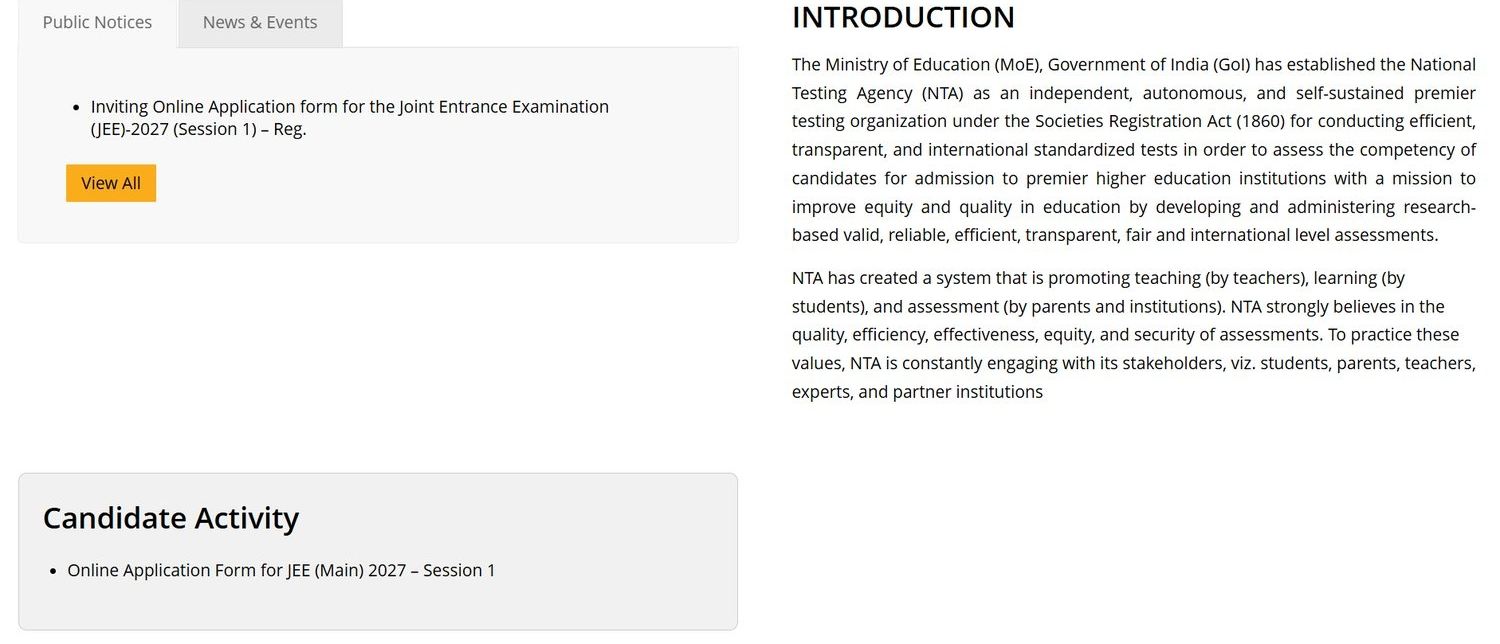
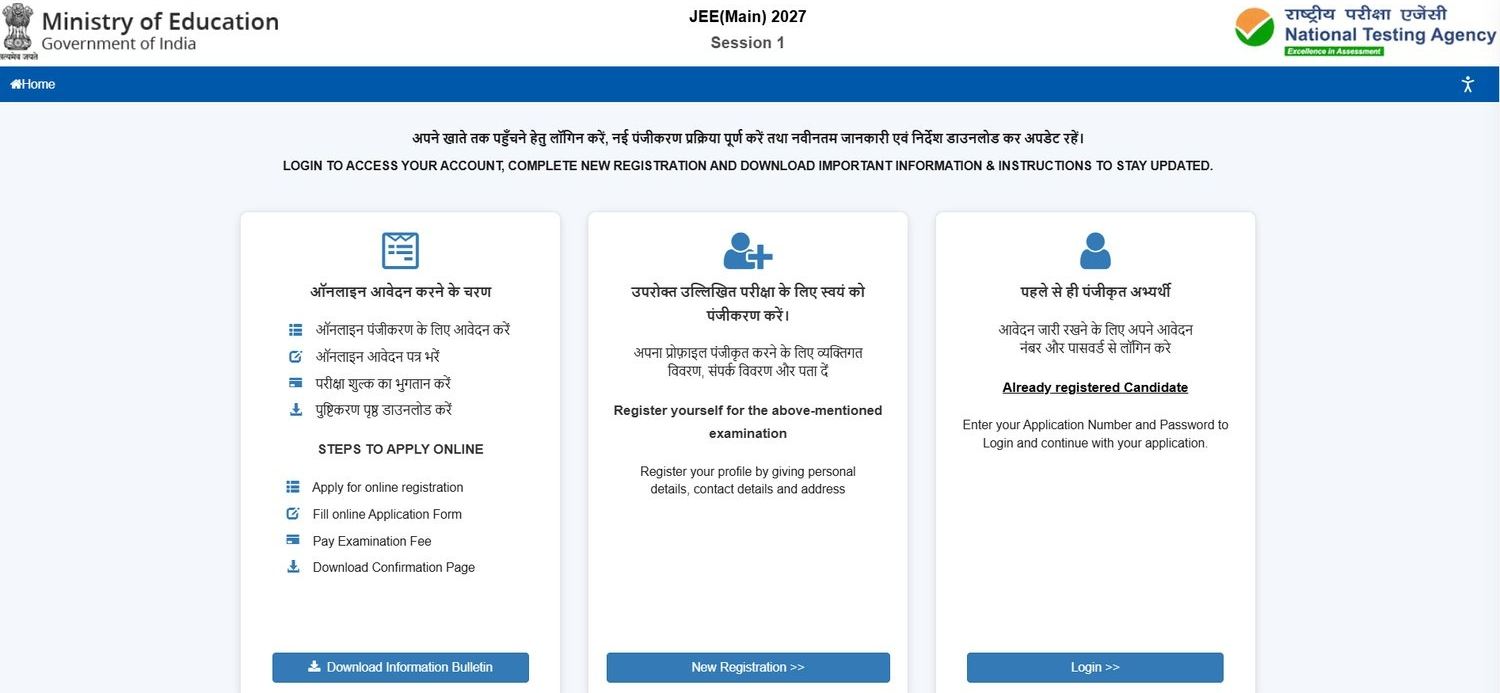
- Go to jeemain.nta.nic.in.
- Under Candidate Activity, click Online Application Form for JEE (Main) 2027 – Session 1.
- On the portal home page, read the Information Bulletin first (Download button).
- Click New Registration to begin.
Read the instructions and give consent
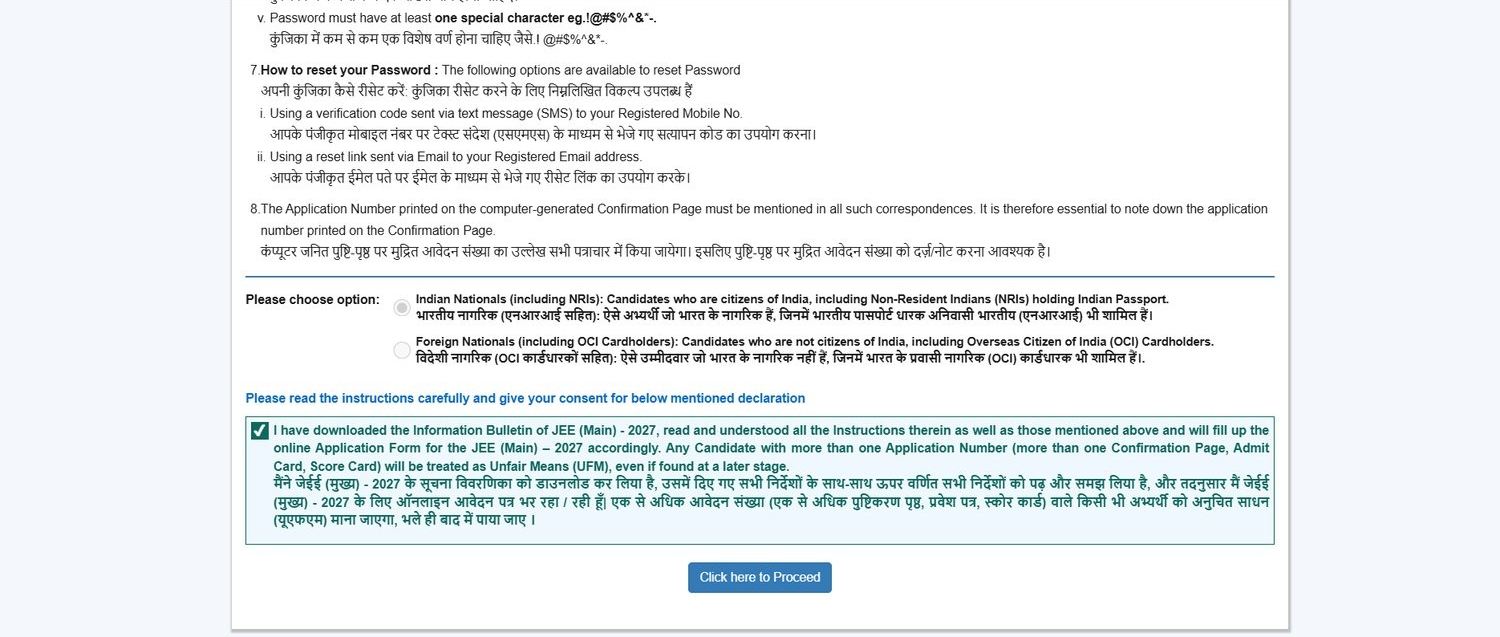
- Choose your nationality: Indian National (including NRIs) or Foreign National (including OCI).
- Tick the declaration: you have read the Information Bulletin and will fill the form accordingly.
- Click Click here to Proceed.
Sign in with Meri Pehchaan
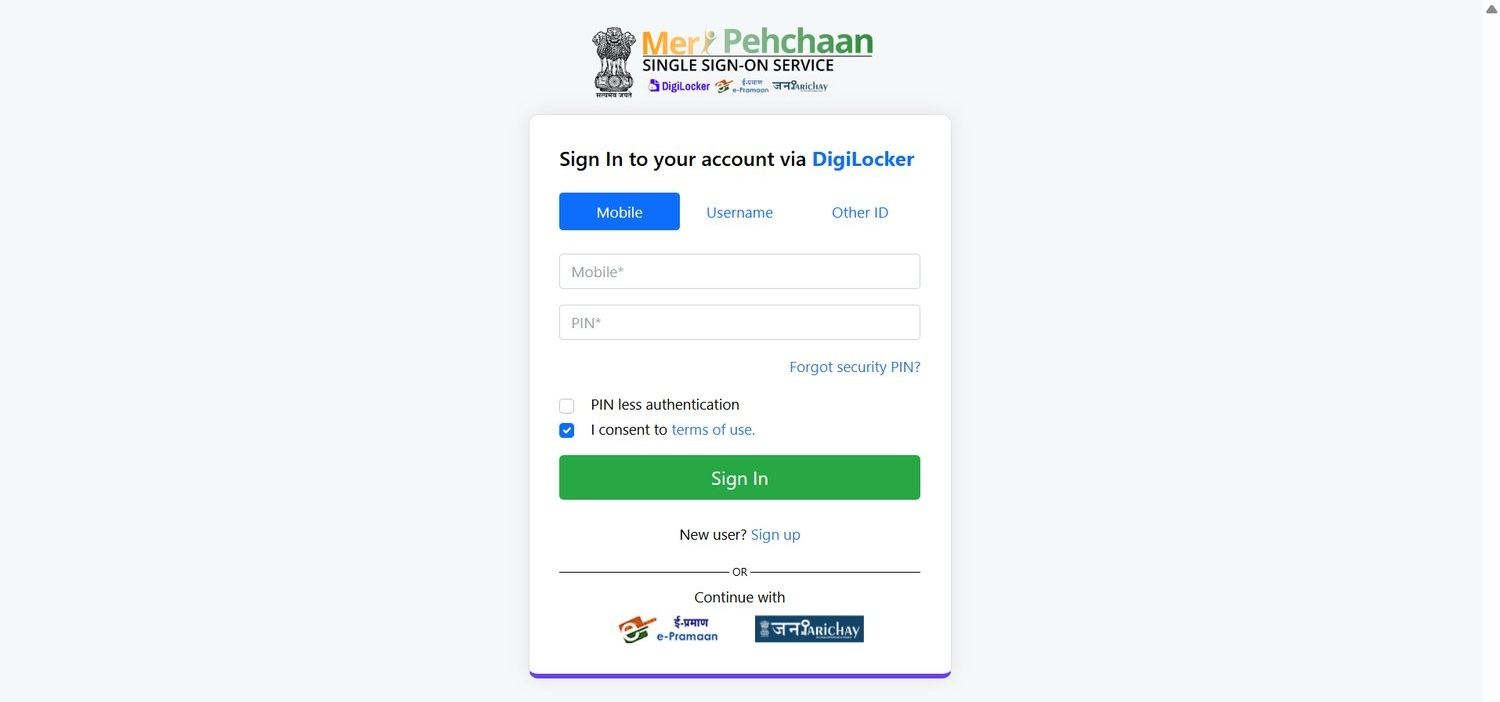
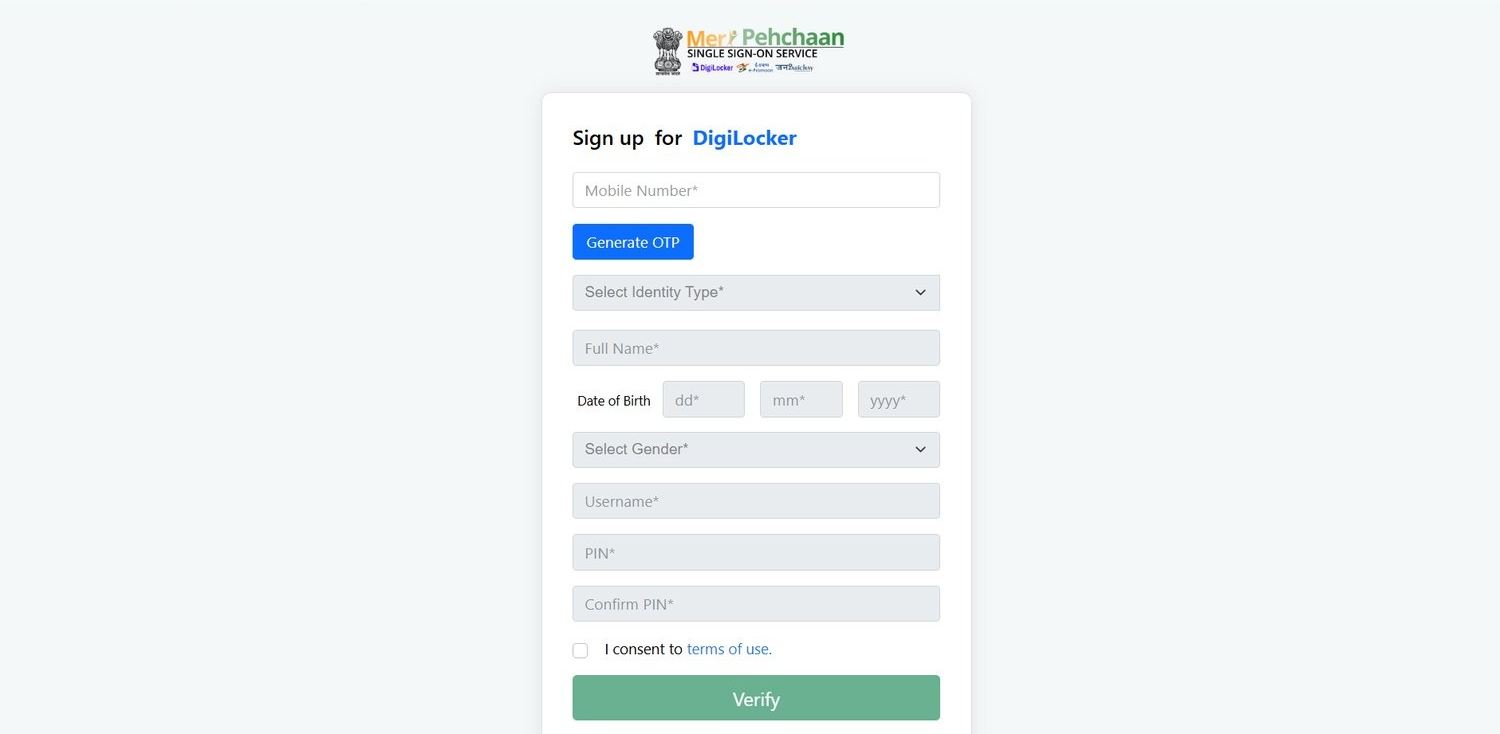
- Registration uses the government single sign-on, backed by DigiLocker.
- Already have an account? Enter mobile and PIN, tick the consent box, Sign In.
- New user? Click Sign up: enter mobile, generate OTP, add name, date of birth, gender, username and PIN, then Verify.
Allow DigiLocker to share your details
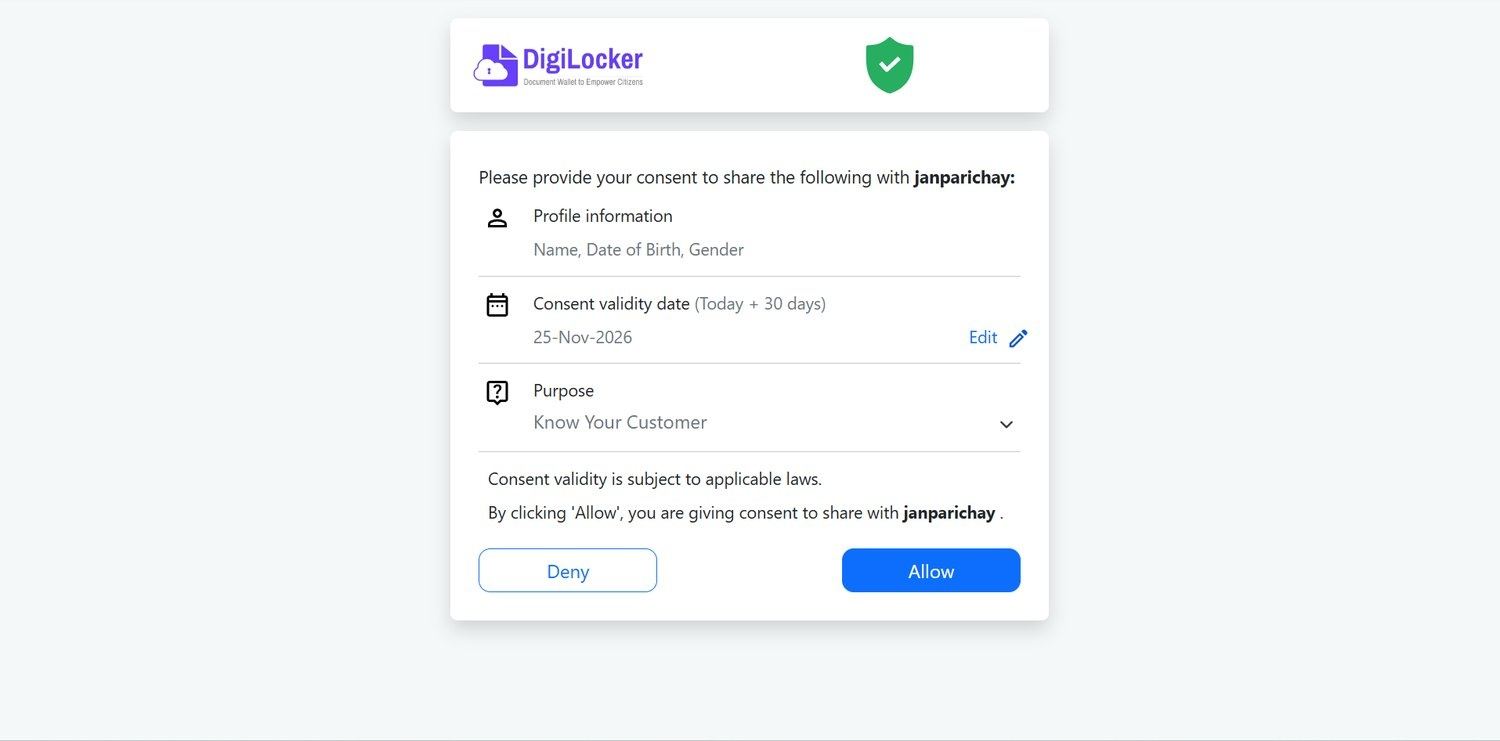
- A consent screen lists what is shared: your name, date of birth and gender.
- Consent is valid for 30 days by default.
- Select all the documents asked on the page and click Allow to continue.
Complete the DigiLocker verification
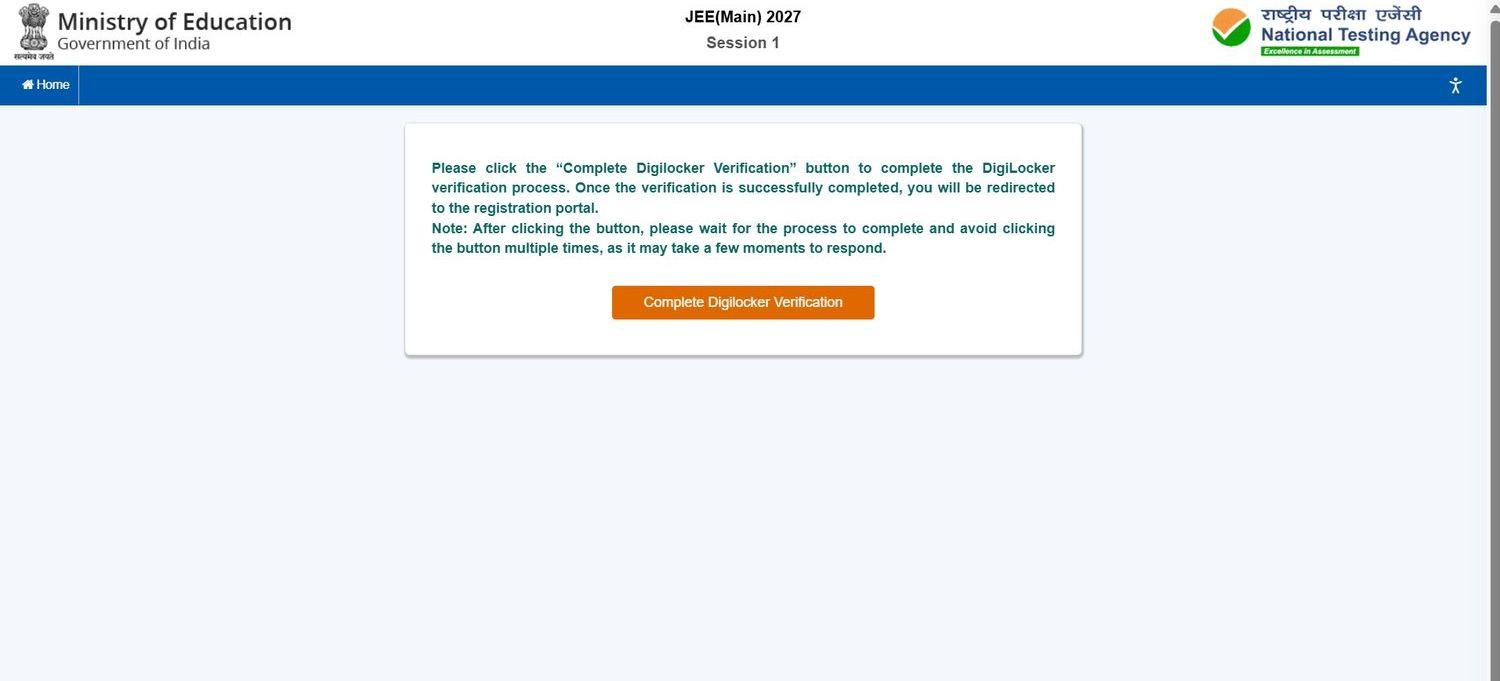
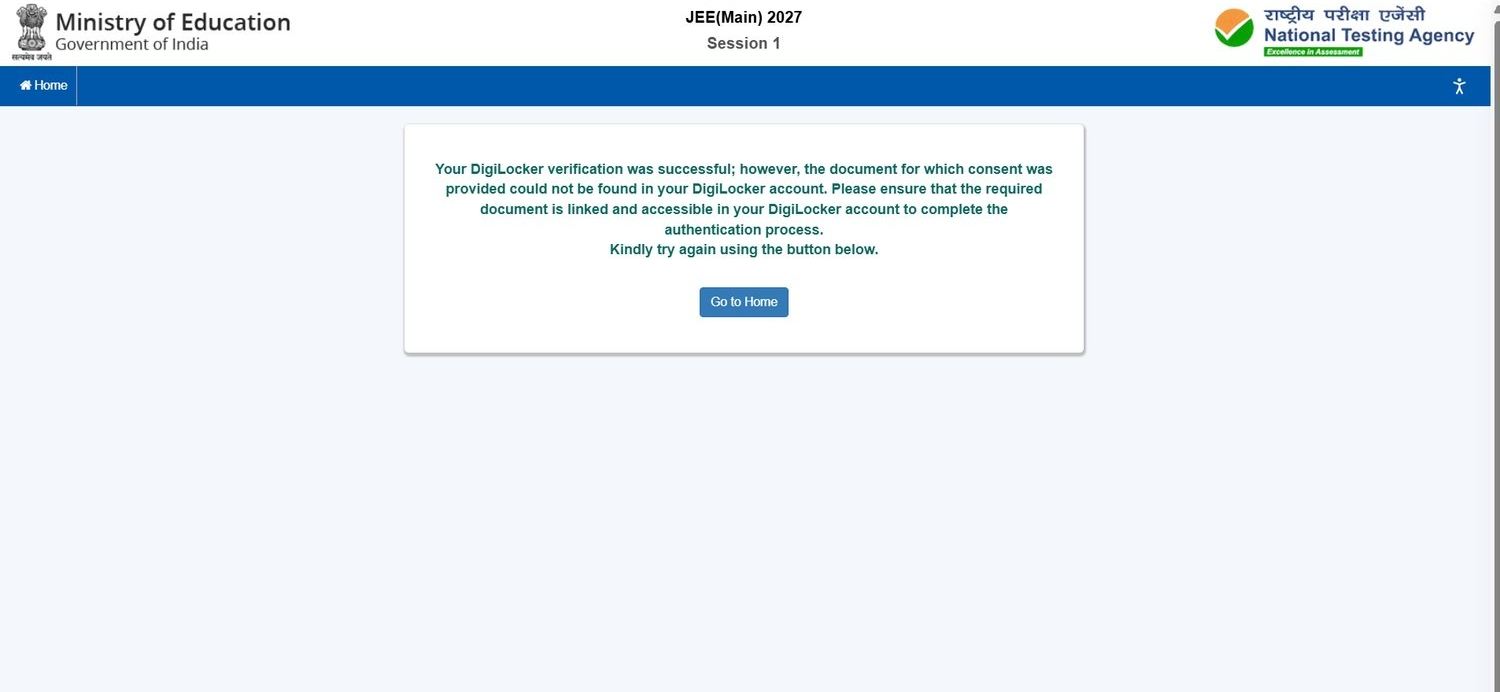
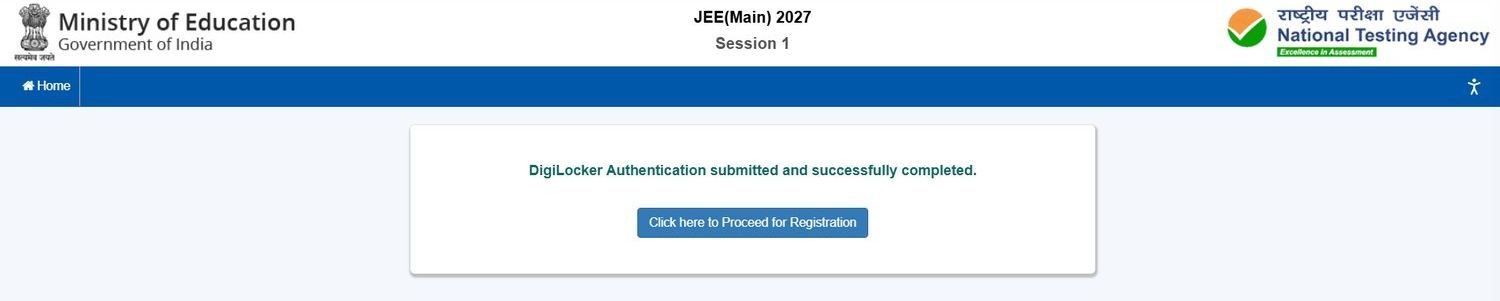
- Click Complete Digilocker Verification. Wait a few moments and click only once.
- If you see 'document could not be found', link the document in DigiLocker, then try again from Home.
- On success, click Click here to Proceed for Registration.
Enter your personal details
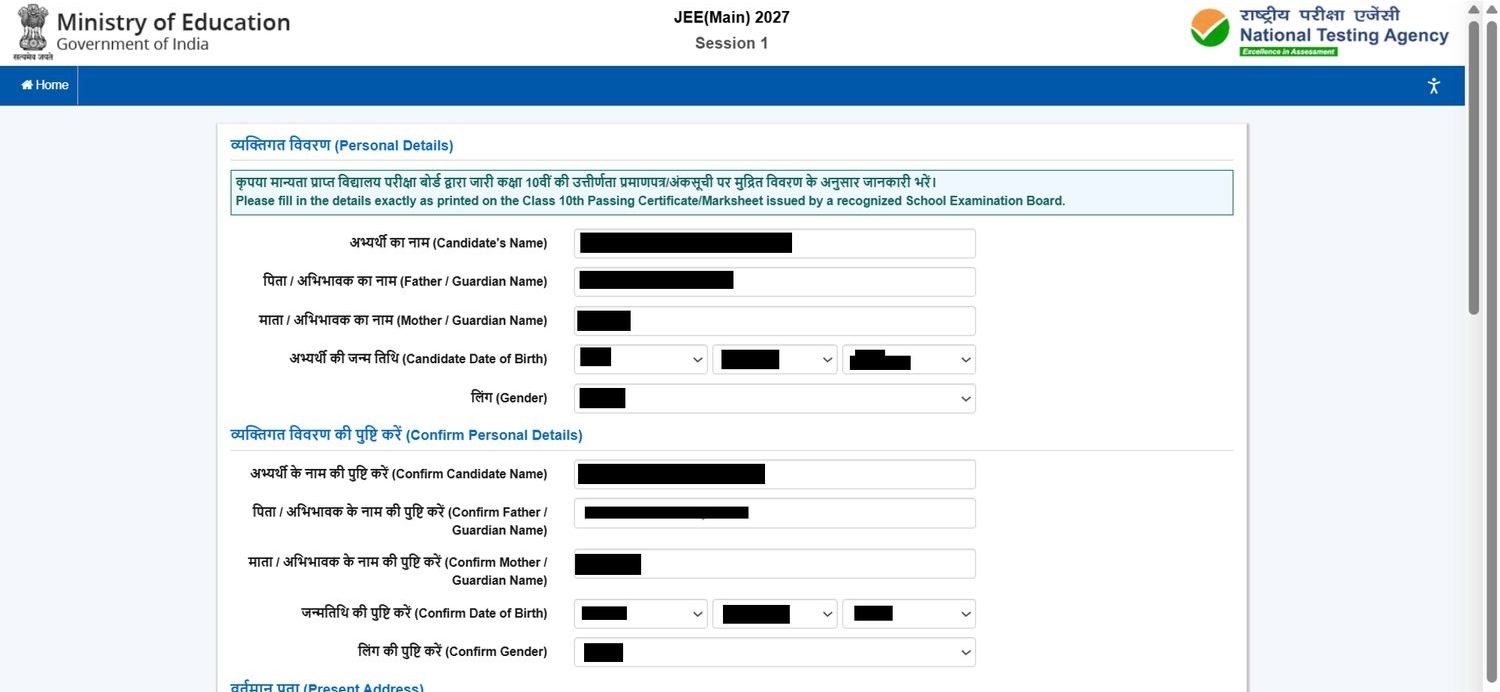
- Fill candidate, father/guardian and mother/guardian names exactly as on the Class 10 marksheet.
- Select date of birth and gender.
- Re-enter all of them in the Confirm section. They must match.
Contact details and password
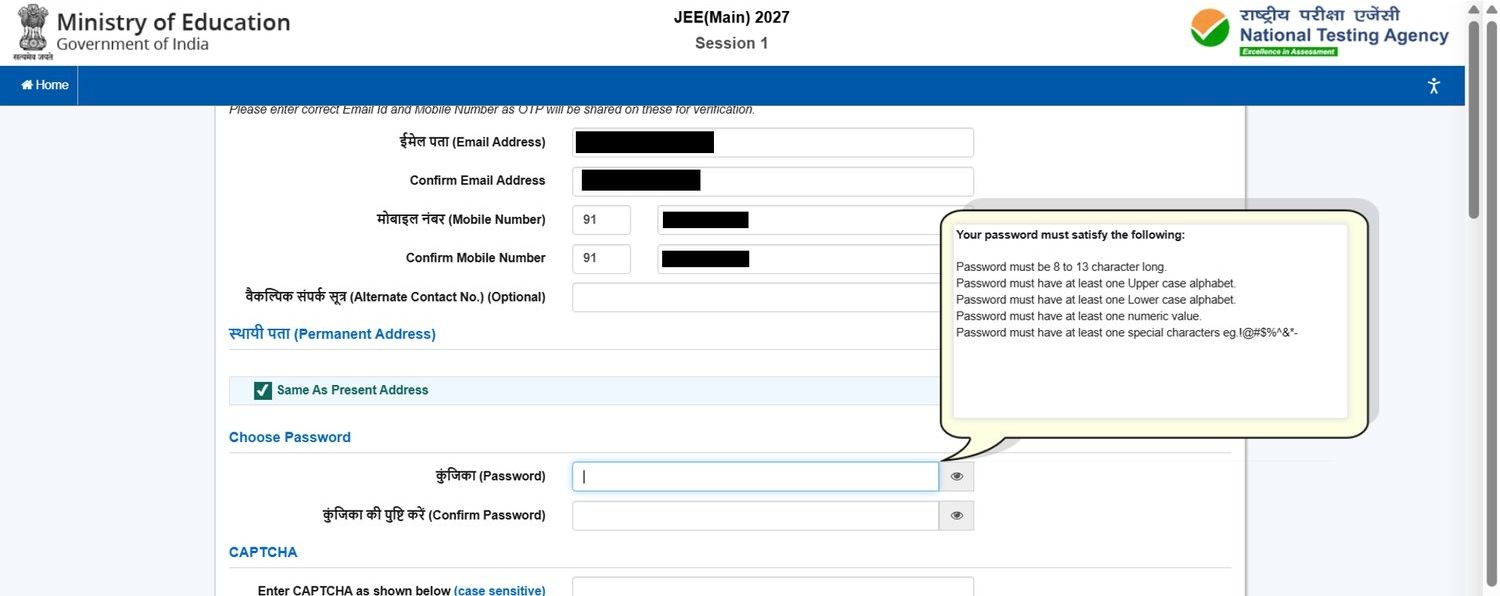
- Enter present and permanent address (tick Same As Present Address if identical).
- Give your own email and mobile number, and confirm both.
- Create a password: 8–13 characters with uppercase, lowercase, a number and a special character.
- Type the CAPTCHA shown.
Review your registration form
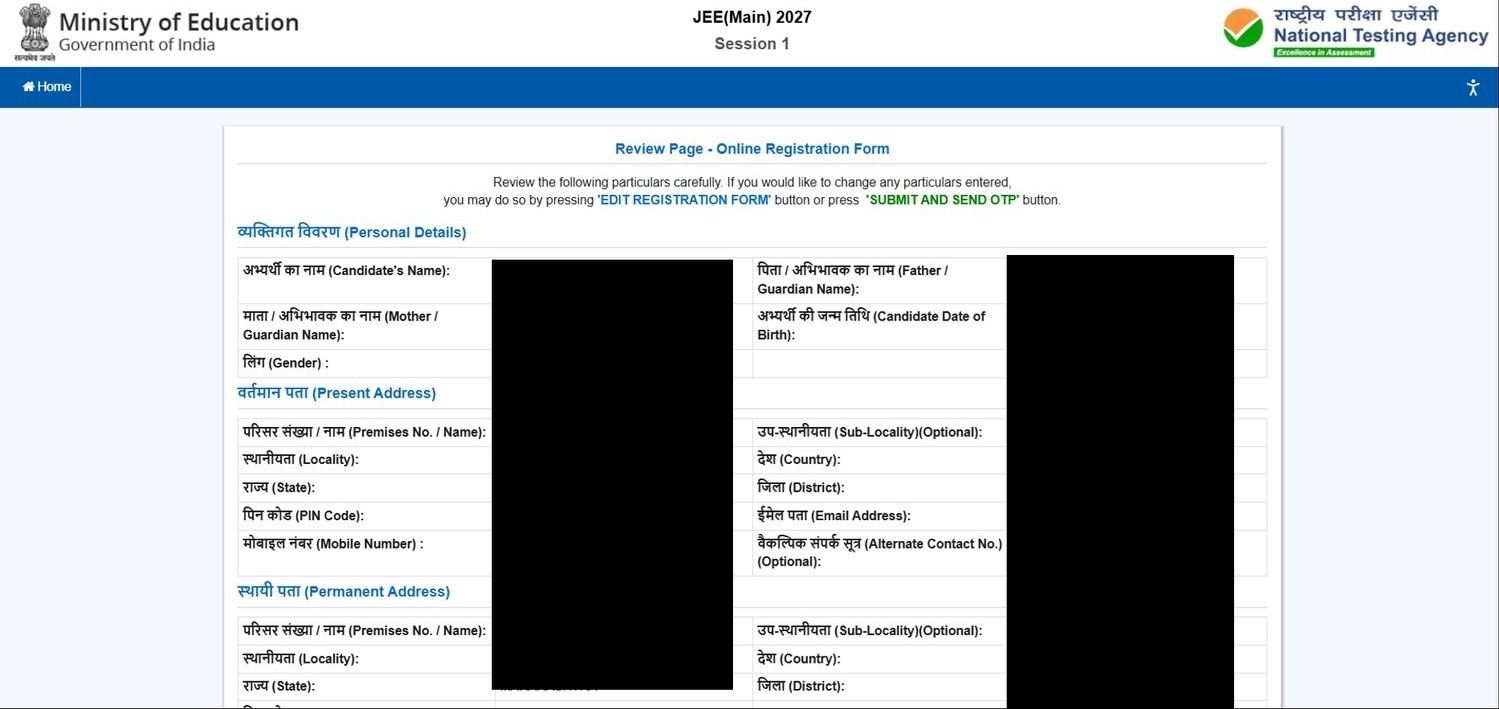
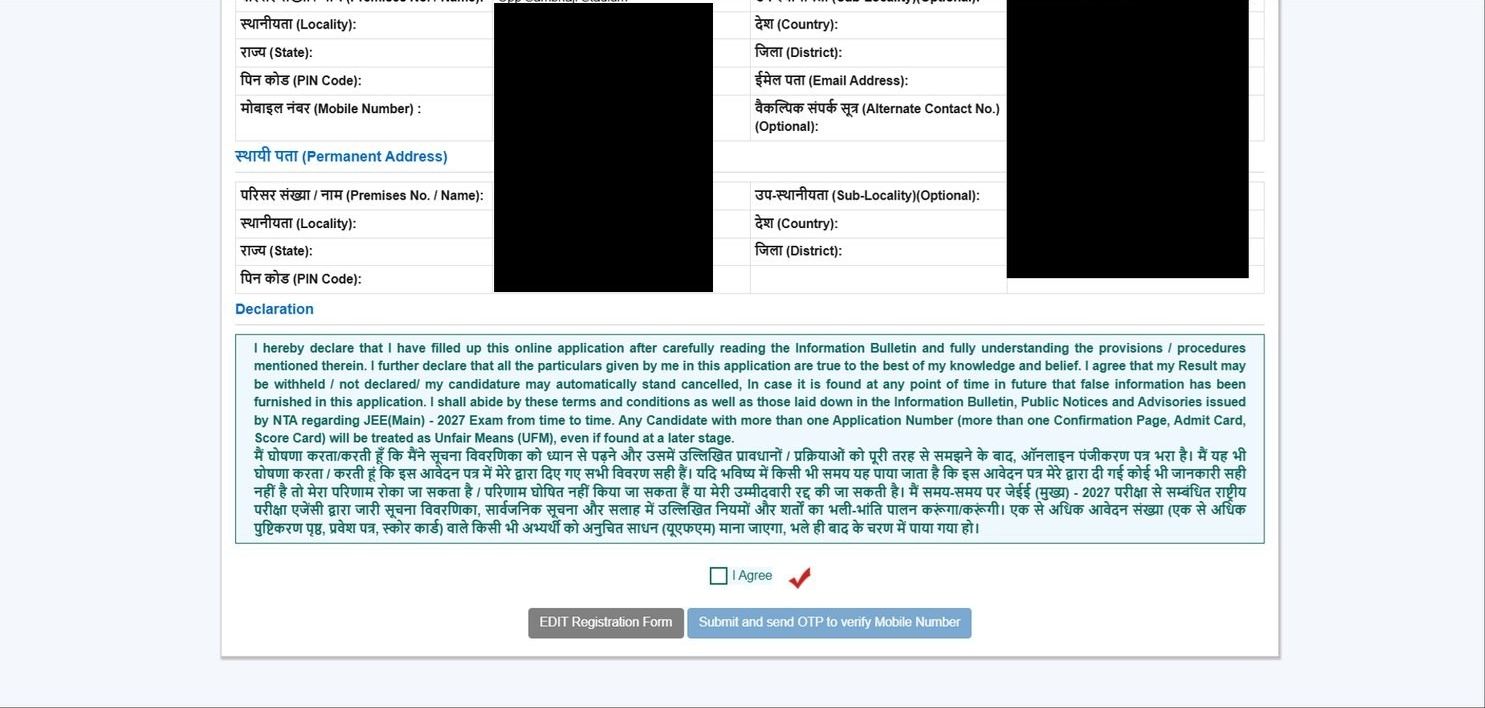
- A review page shows everything you entered. Read every field.
- Something wrong? Press Edit Registration Form.
- All correct? Tick I Agree, then Submit and send OTP.
Verify OTP and get your Application Number

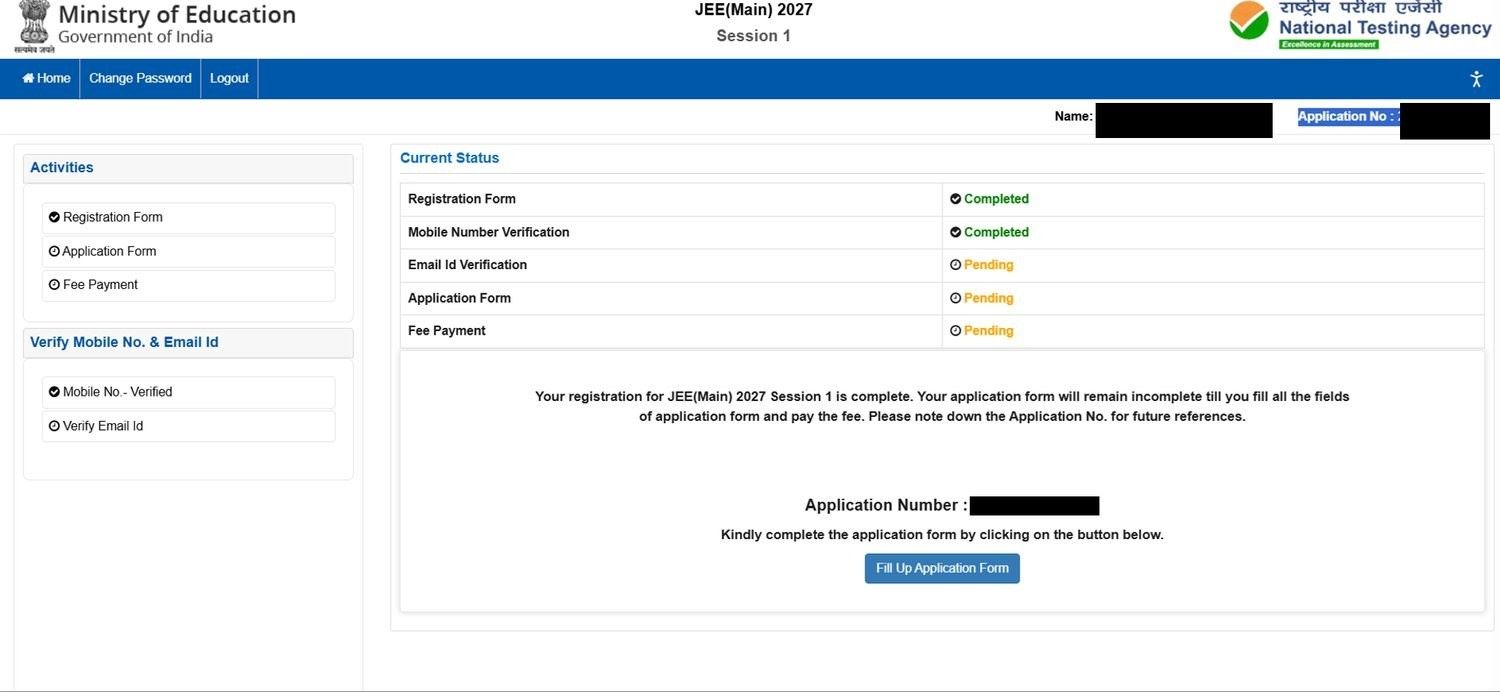
- Enter the 6-digit OTP received by SMS. It is valid for 10 minutes.
- No SMS? Wait a few minutes, then click Resend Fresh OTP.
- Registration is complete. Your Application Number appears on screen.
- Click Fill Up Application Form.
The 12 sections of the form
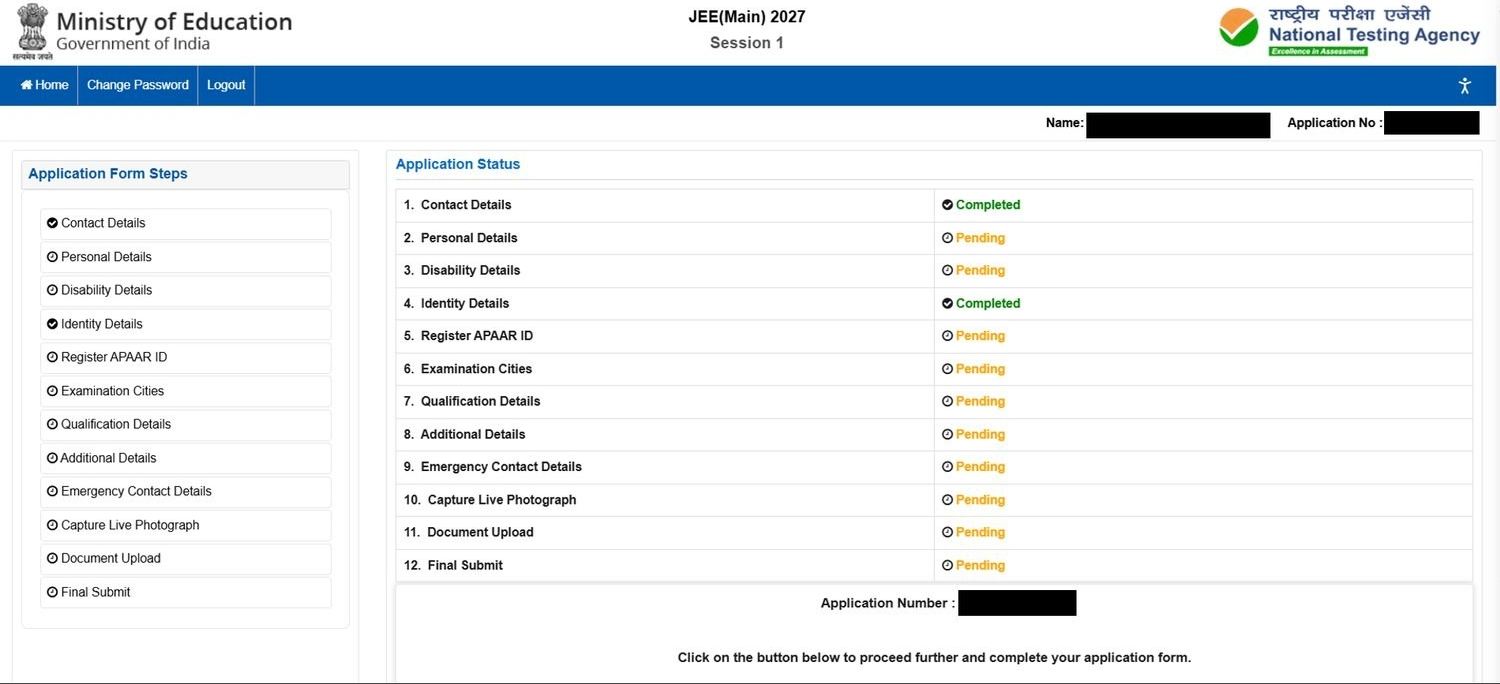
- Contact, Personal, Disability, Identity, APAAR ID, Examination Cities, Qualification, Additional, Emergency Contact, Live Photograph, Document Upload, Final Submit.
- The status table shows what is Completed and what is Pending.
- You can log out and return any time using your Application Number and password.
Personal details
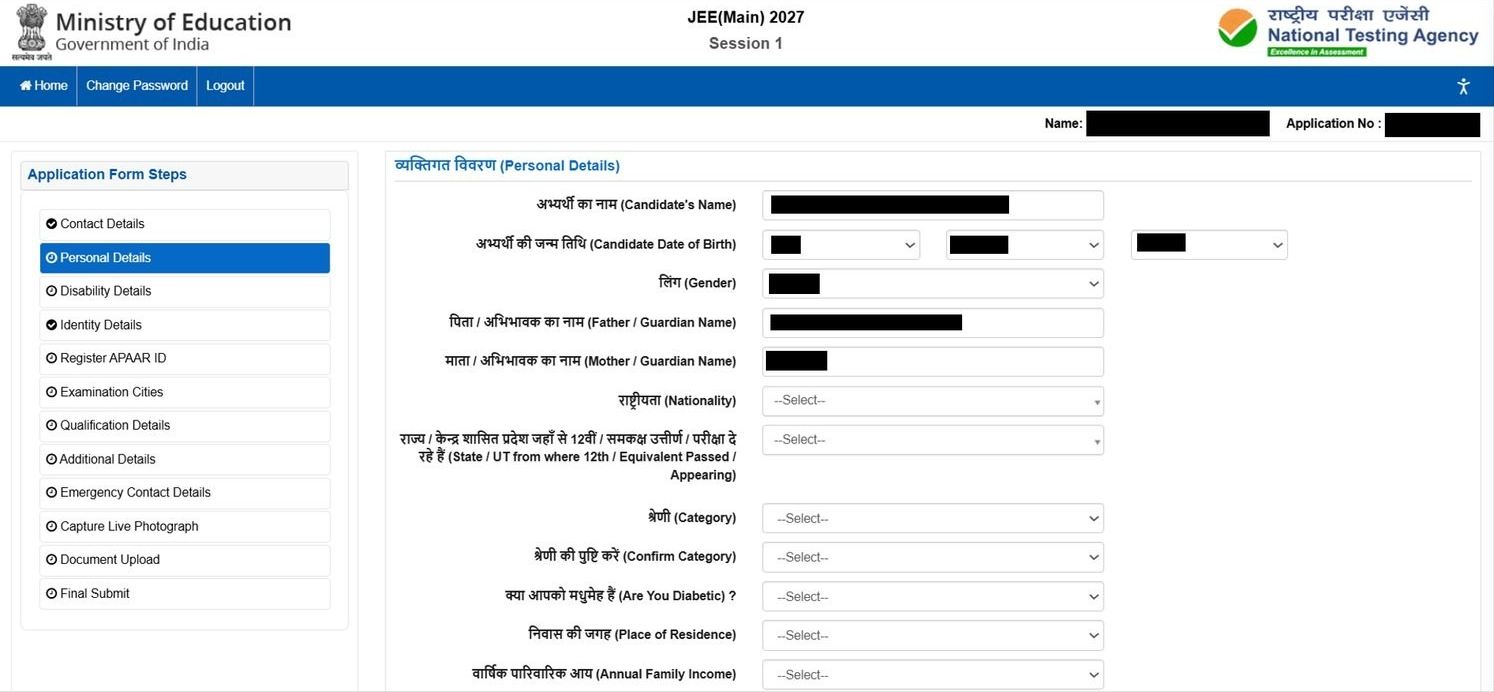
- Name, date of birth, gender and parents' names appear pre-filled from registration.
- Select nationality and the state / UT where you passed (or are appearing in) Class 12.
- Choose your category and confirm it in the next box.
Category certificate and other details
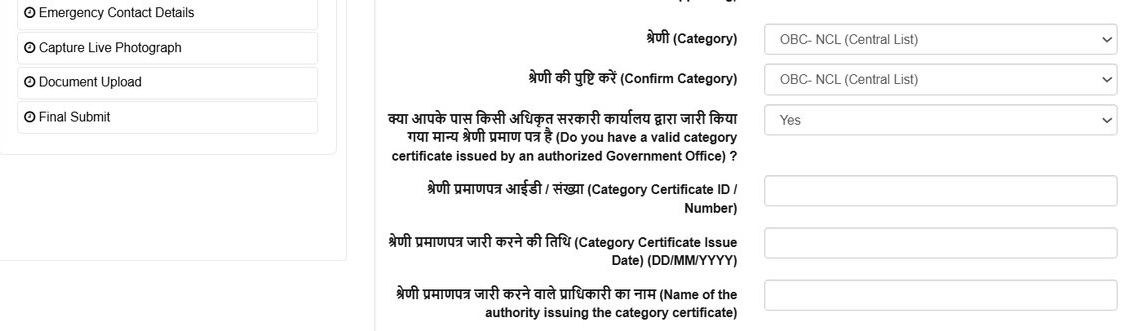
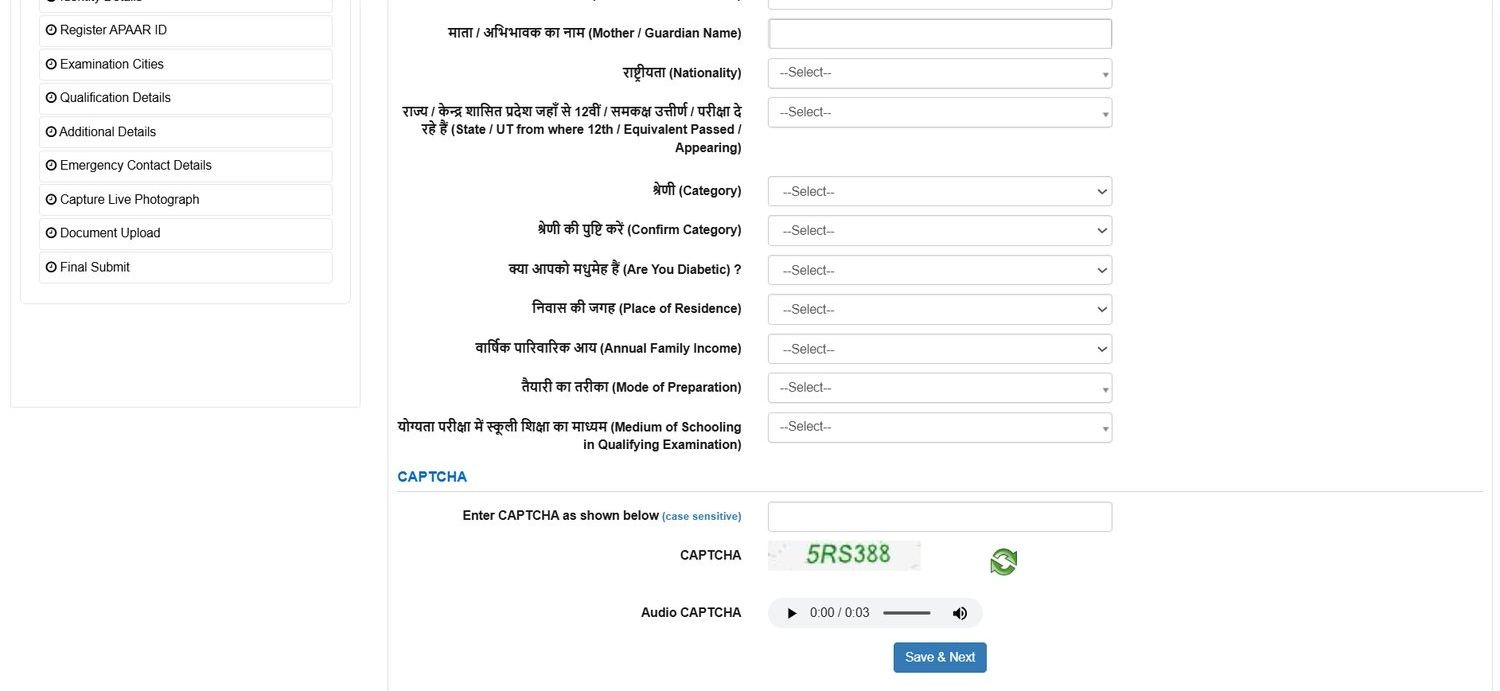
- For a reserved category, enter the certificate number, issue date and issuing authority.
- Answer: diabetic, place of residence, annual family income, mode of preparation, medium of schooling.
- Type the CAPTCHA, then Save & Next.
Disability details (PwD / PwBD)
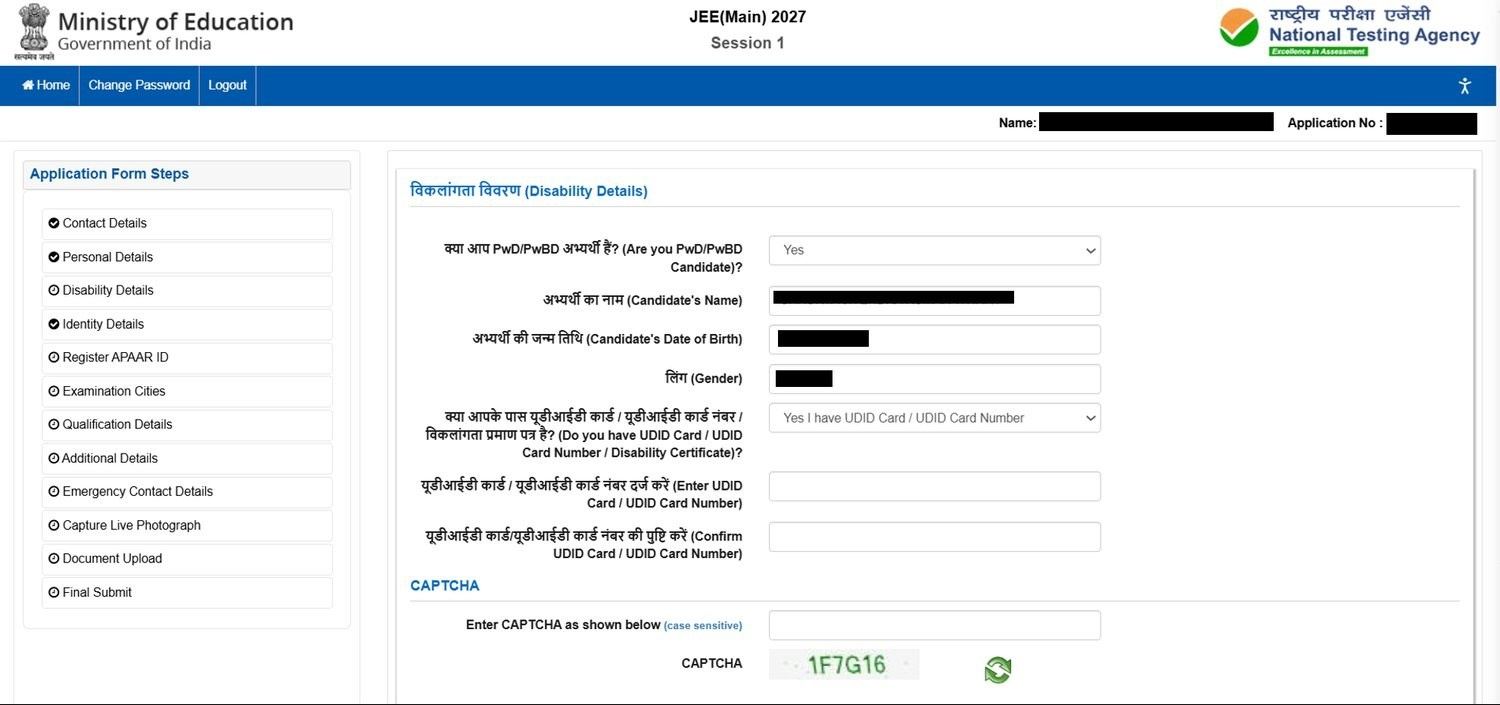
- Select Yes only if you hold a valid disability certificate.
- Enter your UDID Card number and confirm it. Without a UDID card, upload a disability certificate later.
- Not PwD / PwBD? Select No and continue.
Register your APAAR ID
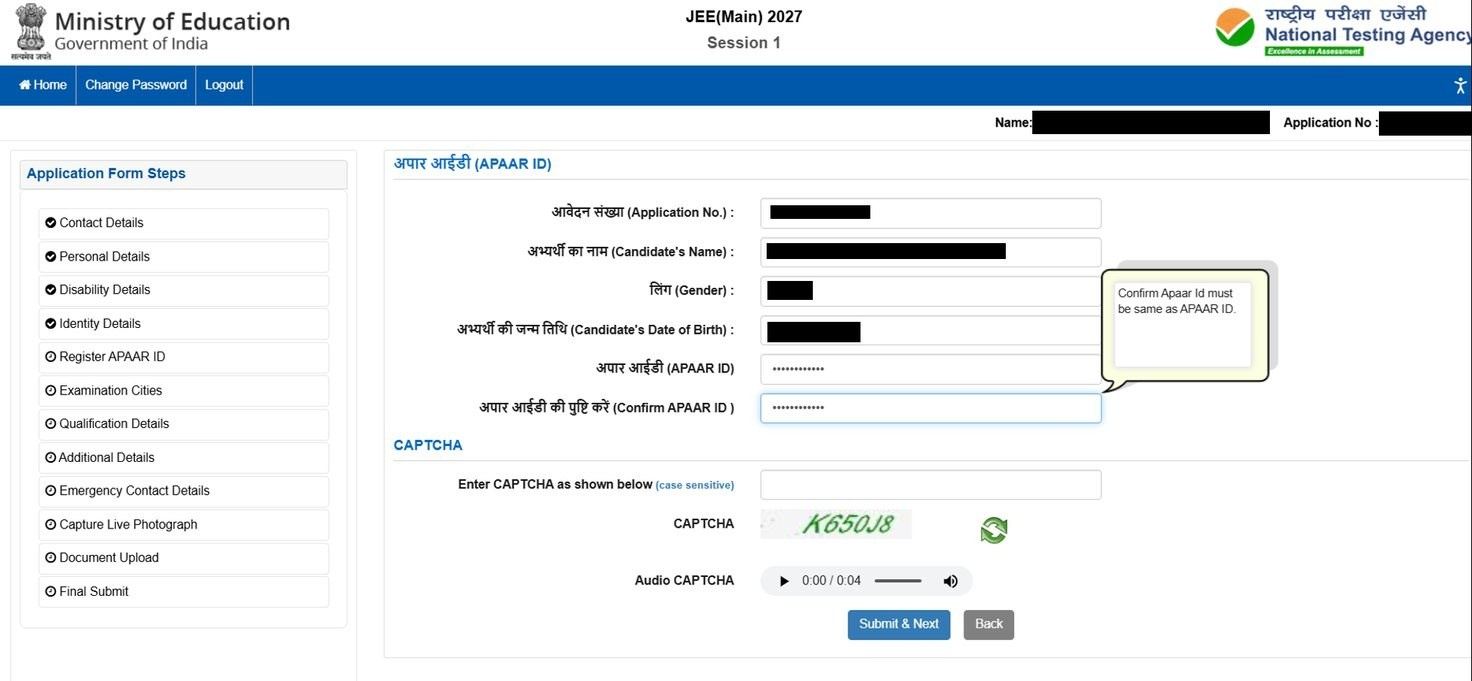
- Enter your APAAR ID and confirm it. Both entries must be identical.
- Candidate name, date of birth and gender are shown for cross-checking.
- Type the CAPTCHA and click Submit & Next.
Choose paper and exam cities
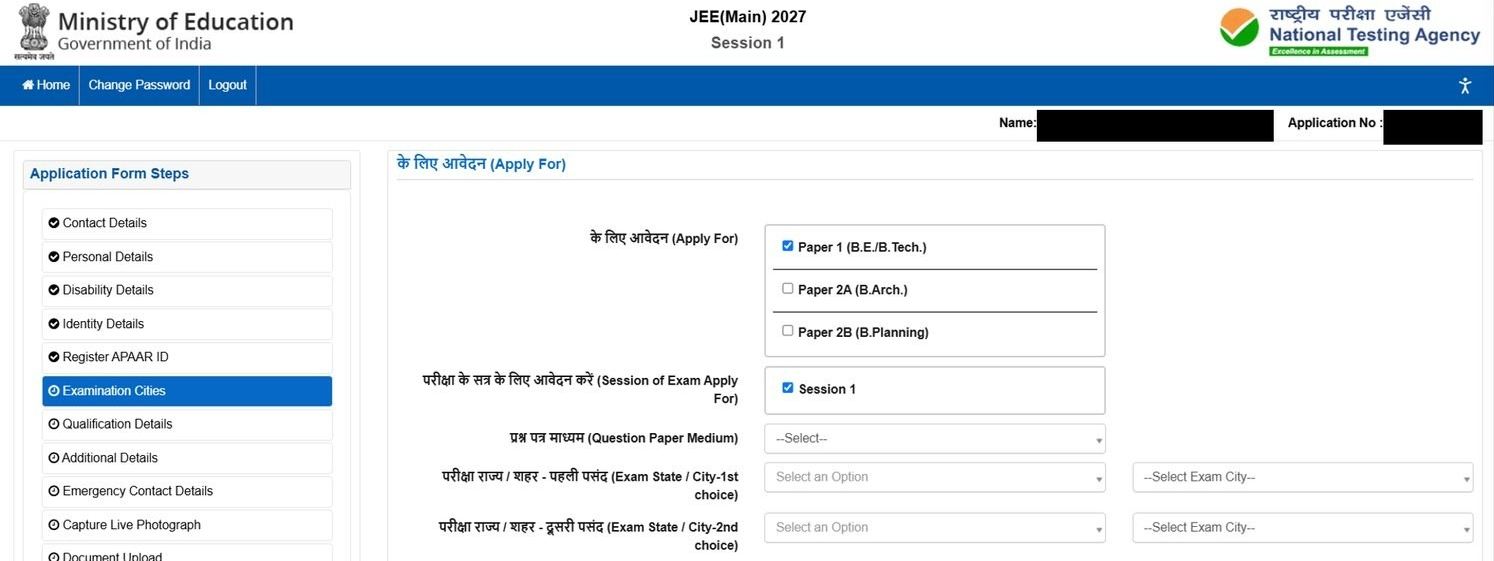
- Tick the paper(s): Paper 1 (B.E./B.Tech.), Paper 2A (B.Arch.), Paper 2B (B.Planning).
- Select Session 1 and your question paper medium (13 languages available).
- Choose up to four exam cities in order of priority, from your permanent or present address state.
Qualification details
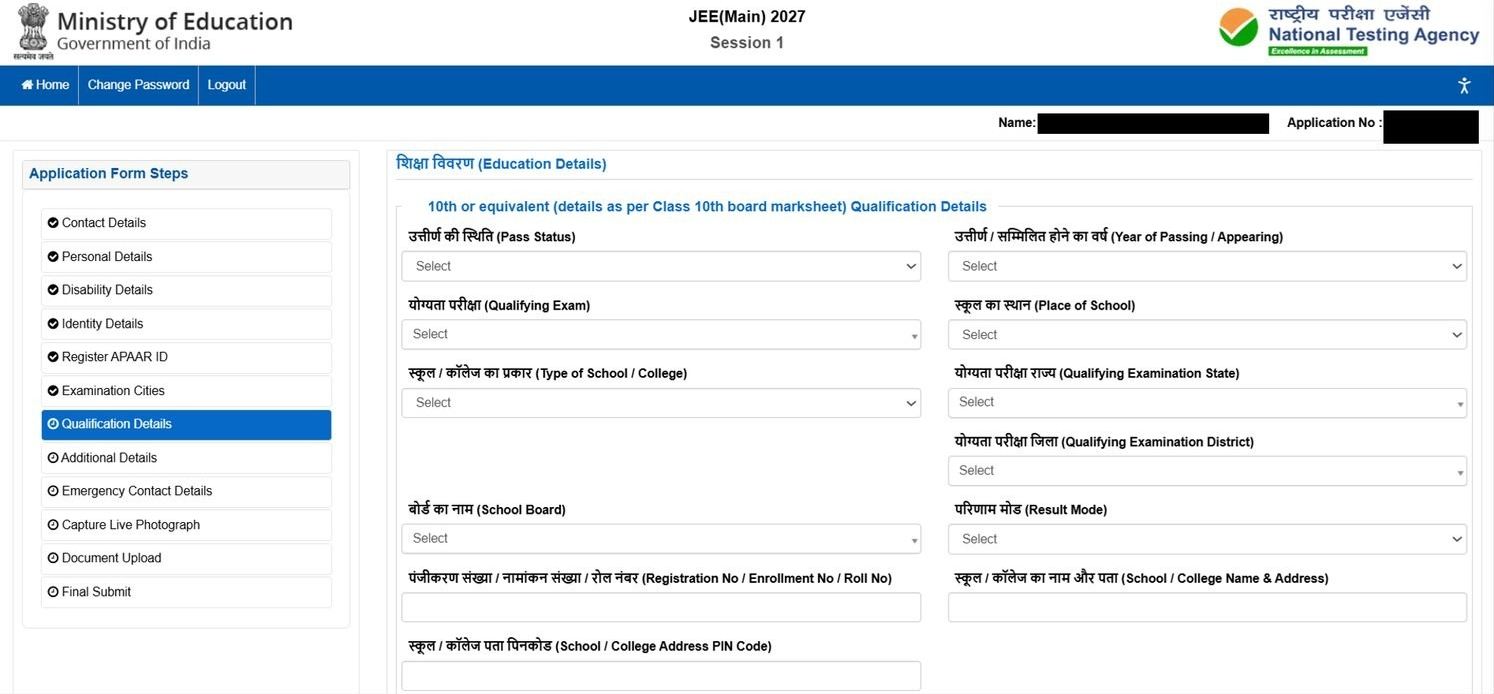

- Class 10: pass status, exam, school type, board, state, district, roll number, result mode, school name and PIN.
- Class 12 (or equivalent): pass status (passed / appearing), year, school place, qualifying exam, state, district and board.
- Review and click Save & Next.
Additional details
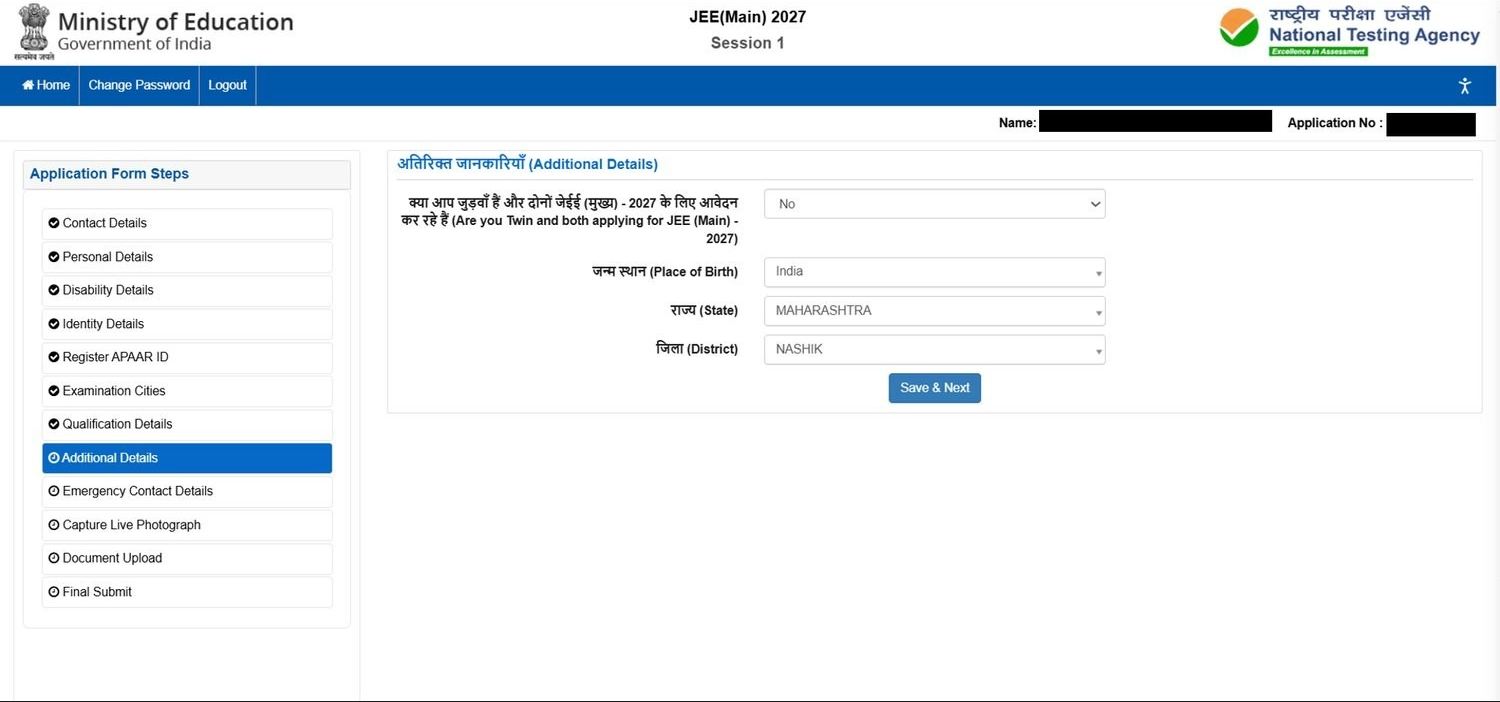
- Are you a twin also applying for JEE Main 2027? Choose Yes or No.
- Select your place of birth: country, state and district.
Emergency contact
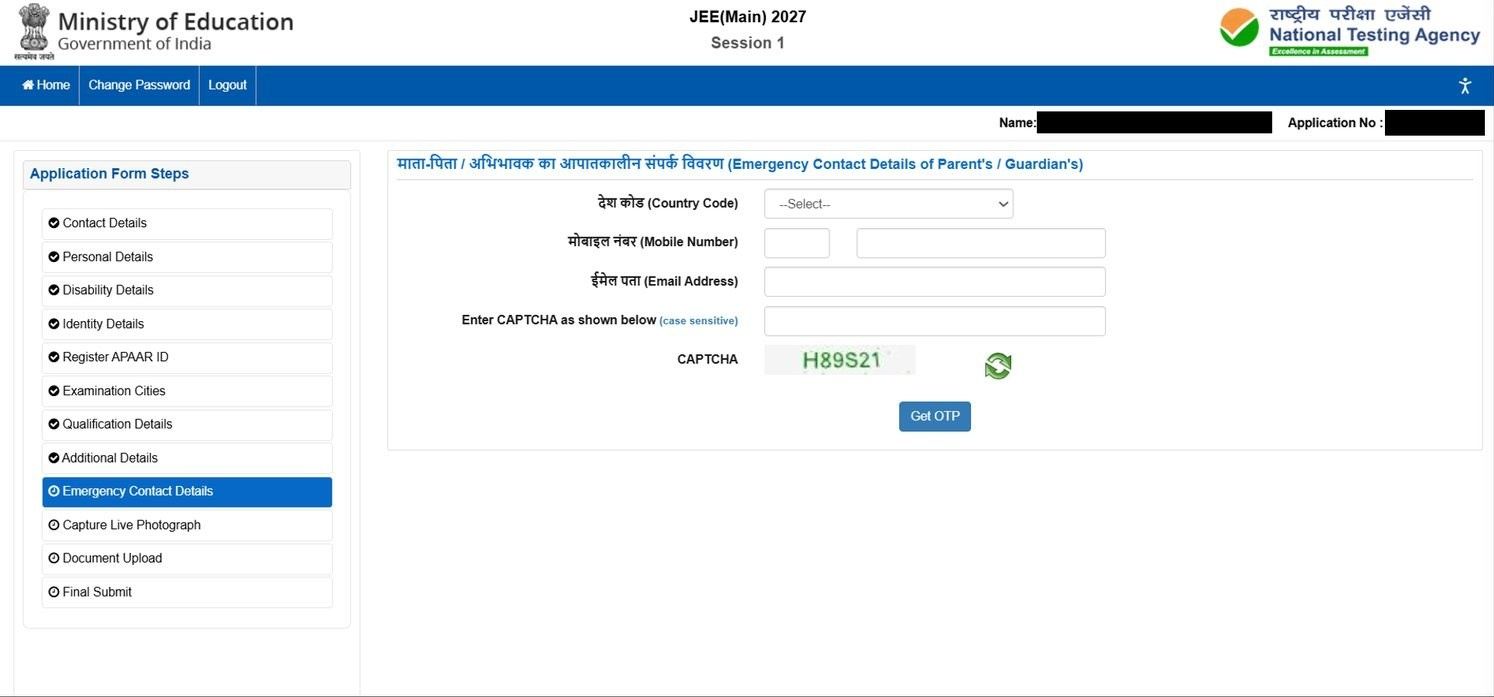
- Select a country code and enter a parent's or guardian's mobile number and email.
- Type the CAPTCHA and click Get OTP to verify the number.
Capture your live photograph
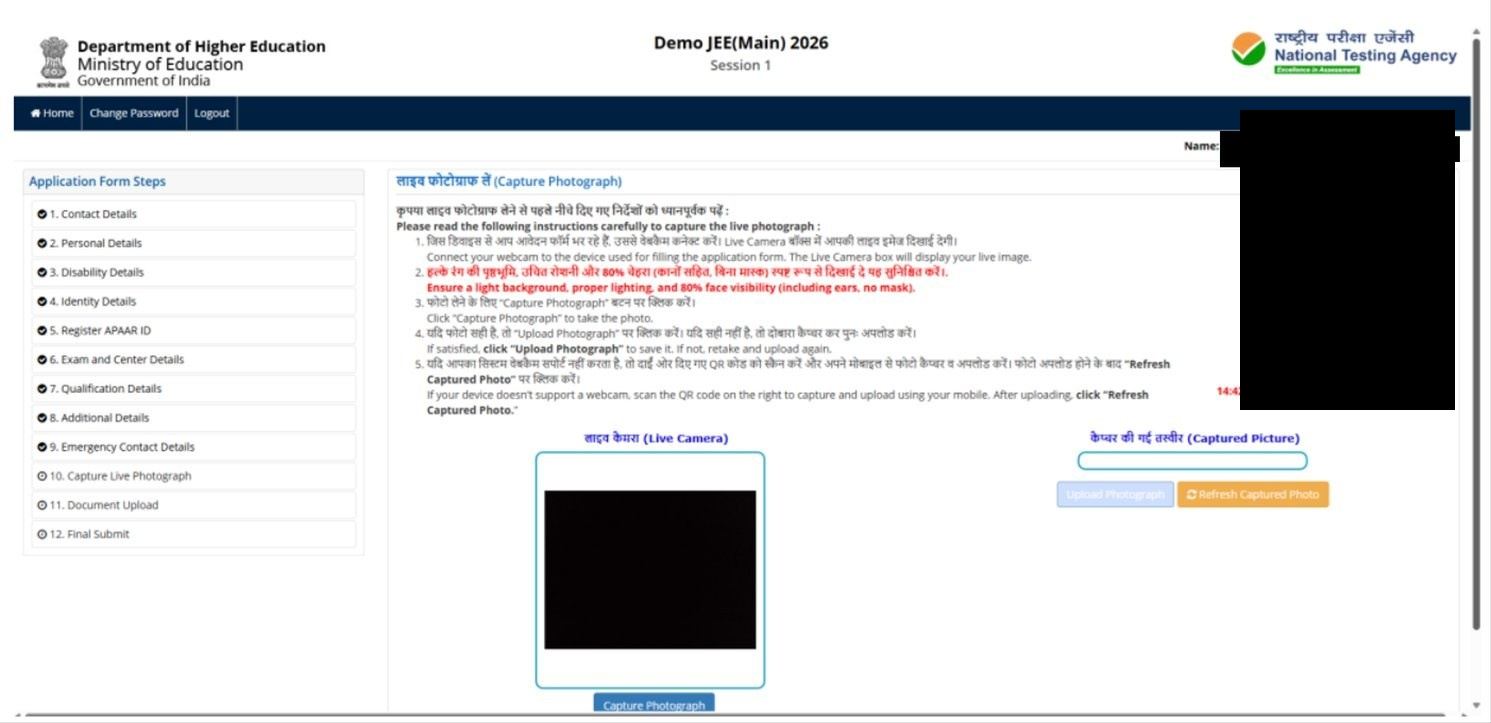
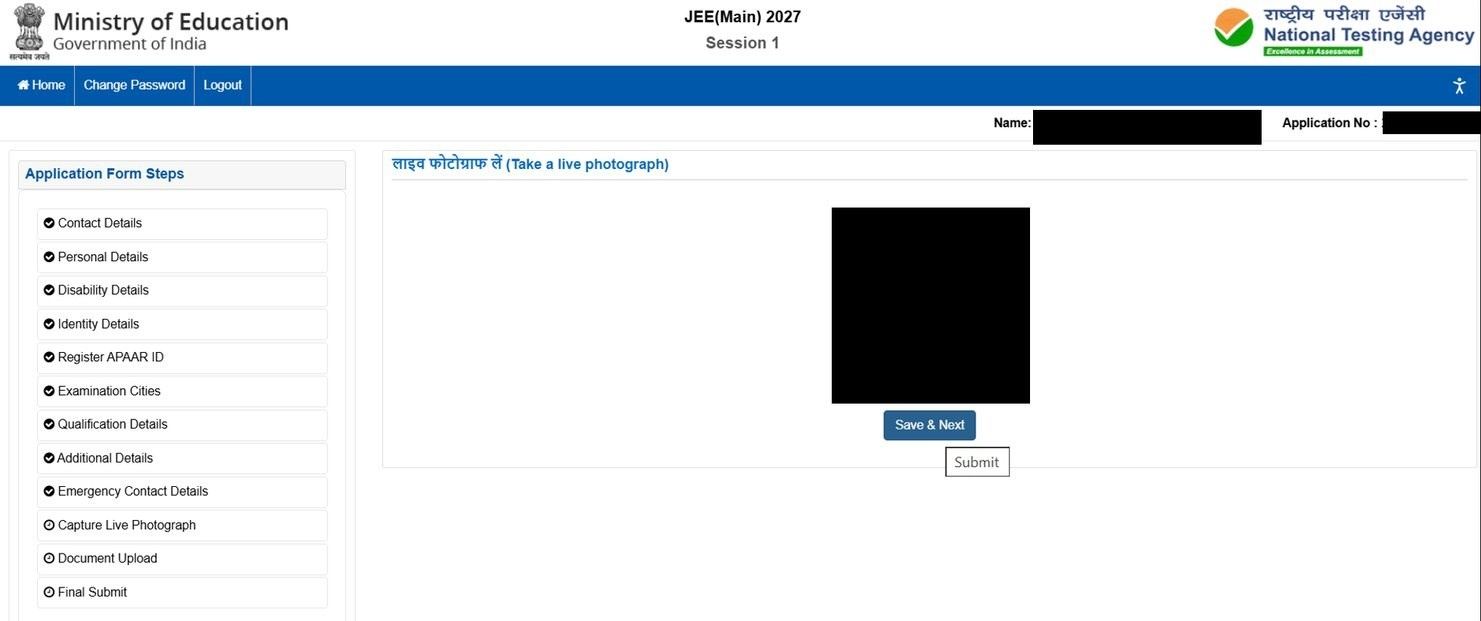
- Switch on your webcam. No webcam? Scan the QR code shown on the page with a phone and capture from there.
- White background, good light, face (including ears) 80% visible, no mask.
- Click Capture Photograph, then Upload Photograph. Retake with Refresh if needed.
Upload your documents
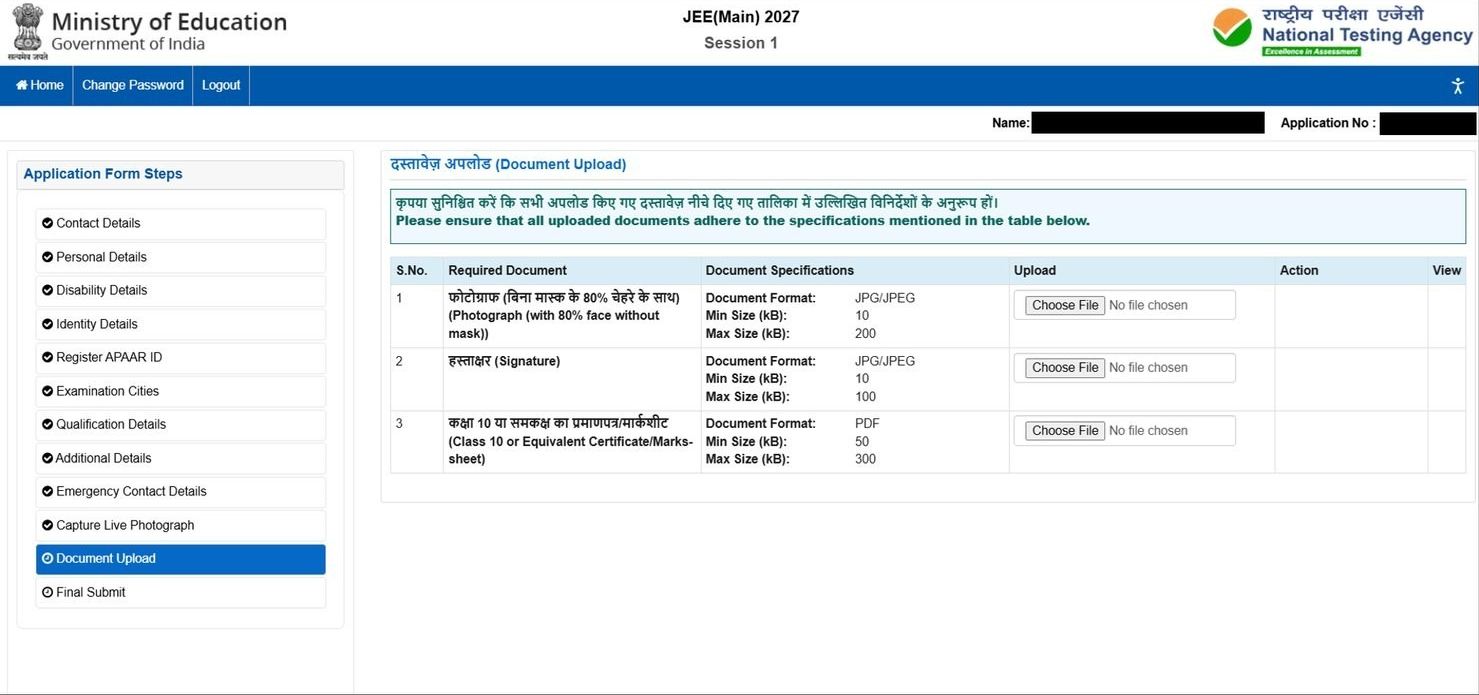
- Photograph: JPG/JPEG, 10–200 KB.
- Signature: JPG/JPEG, 10–100 KB.
- Class 10 certificate / marksheet: PDF, 50–300 KB.
- Click Choose File, then Upload for each row. Use View to check it.
Final review and submit
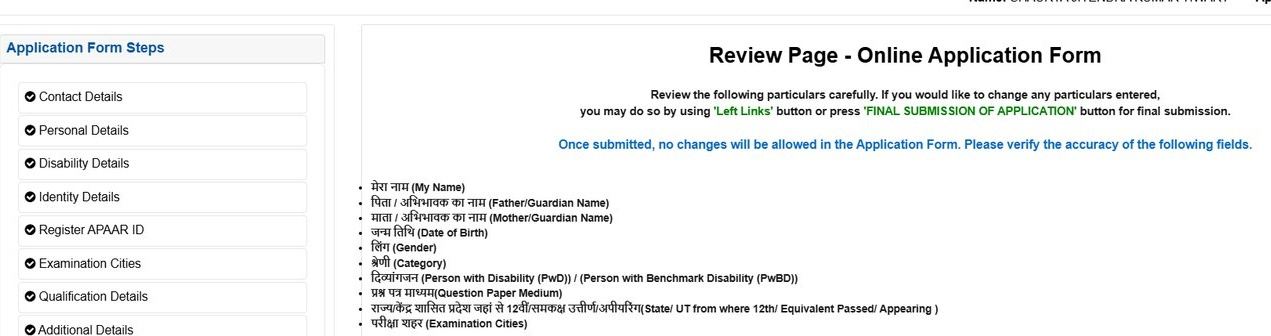
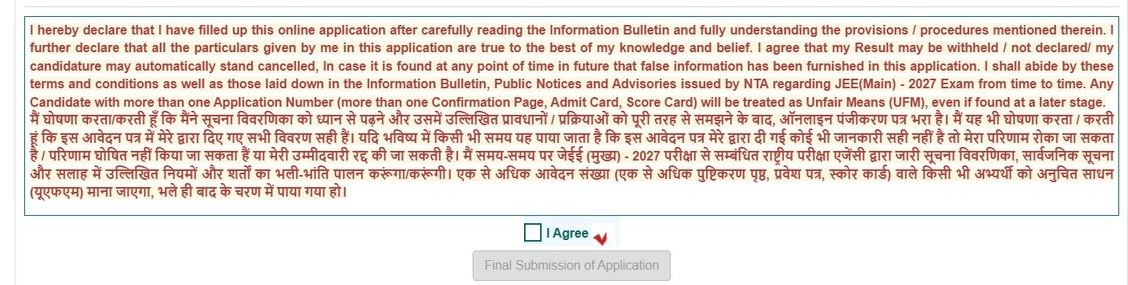
- A review page lists every section. Use the left links to go back and fix anything.
- All correct? Tick I Agree and click Final Submission of Application.
Pay the examination fee
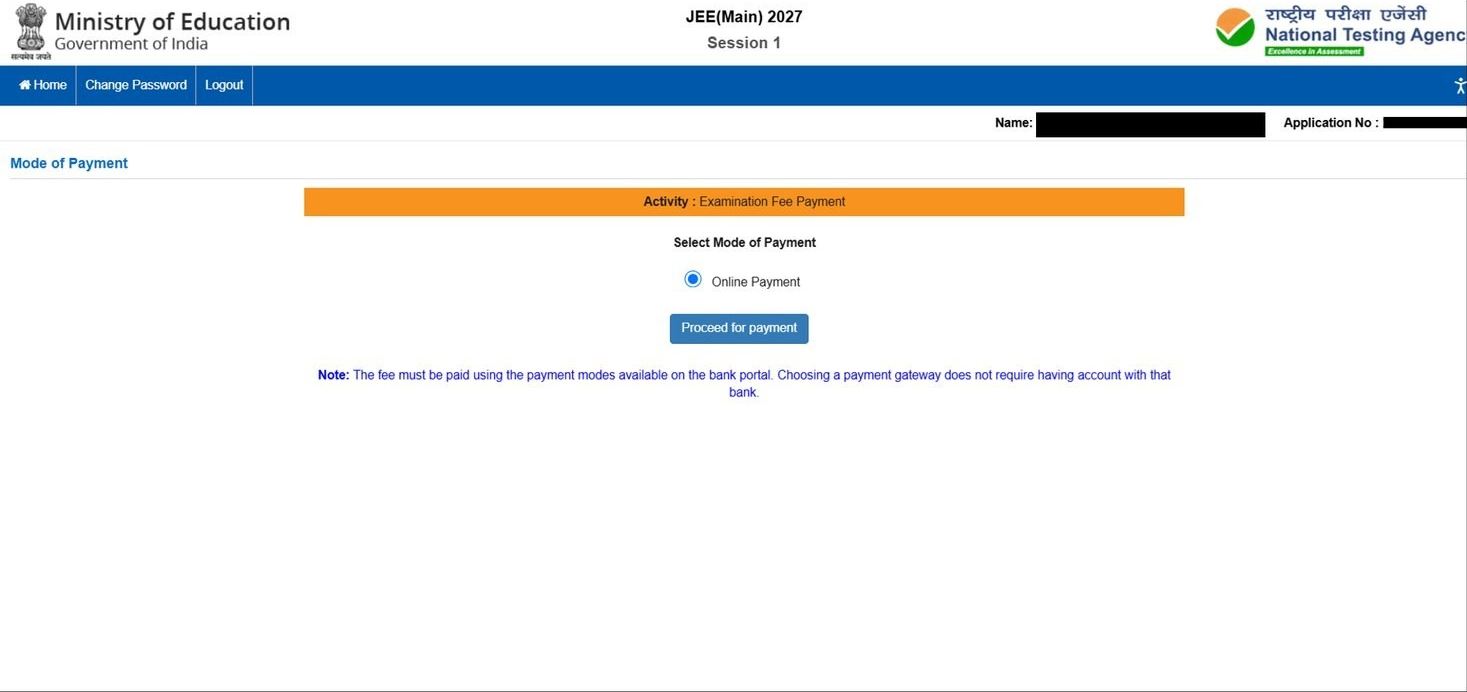
- Select Online Payment, then Proceed for payment.
- Choose UPI, debit card, credit card or net banking on the bank gateway page.
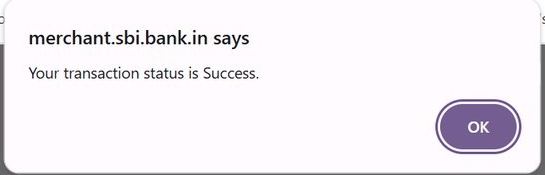
- Wait for the success message. Do not press Back or refresh.
- Keep the payment proof.
Download your Confirmation Page
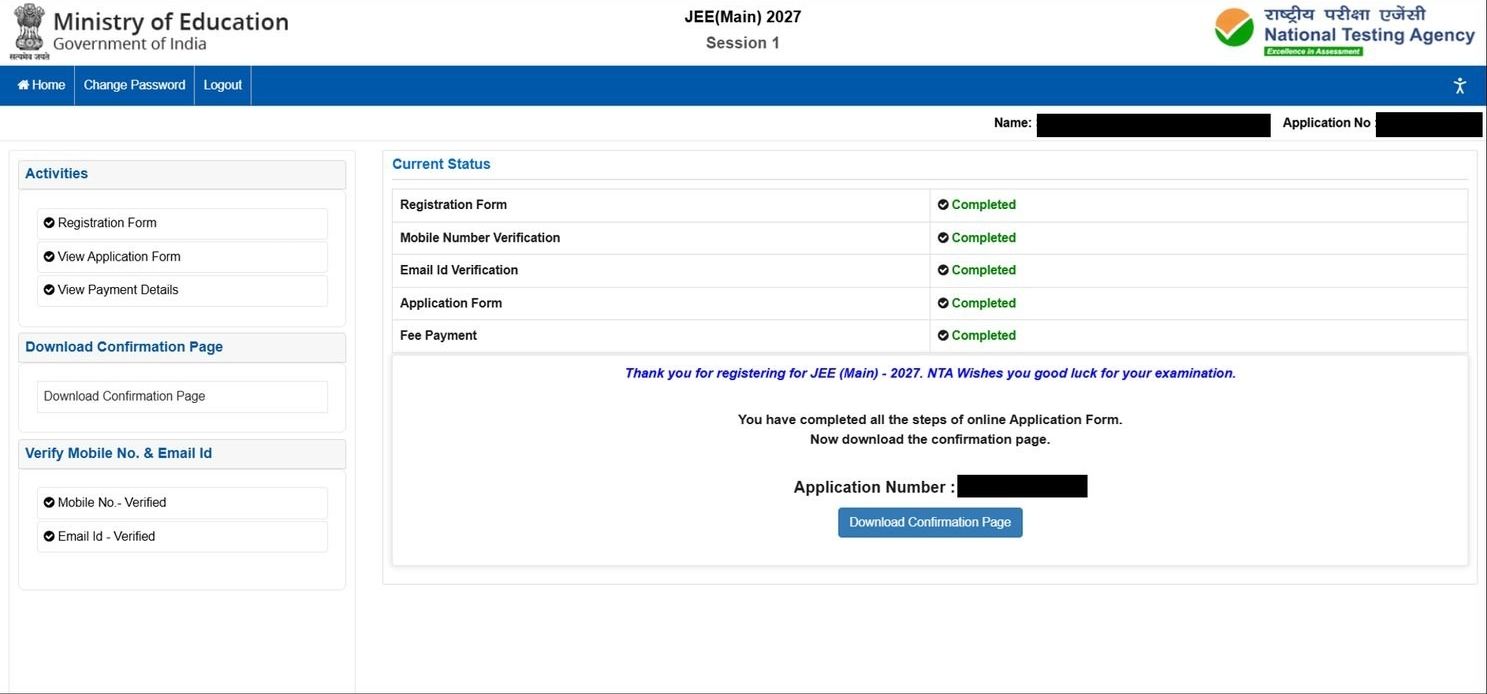
- All five statuses should read Completed: Registration, Mobile Verification, Email Verification, Application Form, Fee Payment.
- Click Download Confirmation Page, then save and print it.
- You do not need to post or email anything to NTA.
After you apply
Visit jeemain.nta.nic.in and check your email regularly for updates.
Do's and don'ts
Do
- Fill details exactly as on your Class 10 marksheet.
- Use your own mobile number and email.
- Note down Application Number and password.
- Upload files in the right format and size.
- Apply early, well before 22 November.
- Download and keep the Confirmation Page.
Don't
- Don't create more than one Application Number.
- Don't use someone else's photo, signature or documents.
- Don't share your password with anyone.
- Don't pay again before checking the first payment status.
- Don't send documents to NTA by post, email or WhatsApp.
- Don't wait for the last day — servers get busy.
Need help?
For payment issues, contact your bank or payment gateway first. Details are in Appendix I of the Information Bulletin.
Form-filling help desk
Spectrum students and parents can get help with the JEE Main application at any of our centres.
Nashik: 70580 70800 · Nashik Road: 87882 33216
Based on the NTA Public Notice (24 Oct 2026) and the Information Bulletin for JEE (Main) 2027. This is not an official NTA publication — always confirm the latest details on jeemain.nta.nic.in.